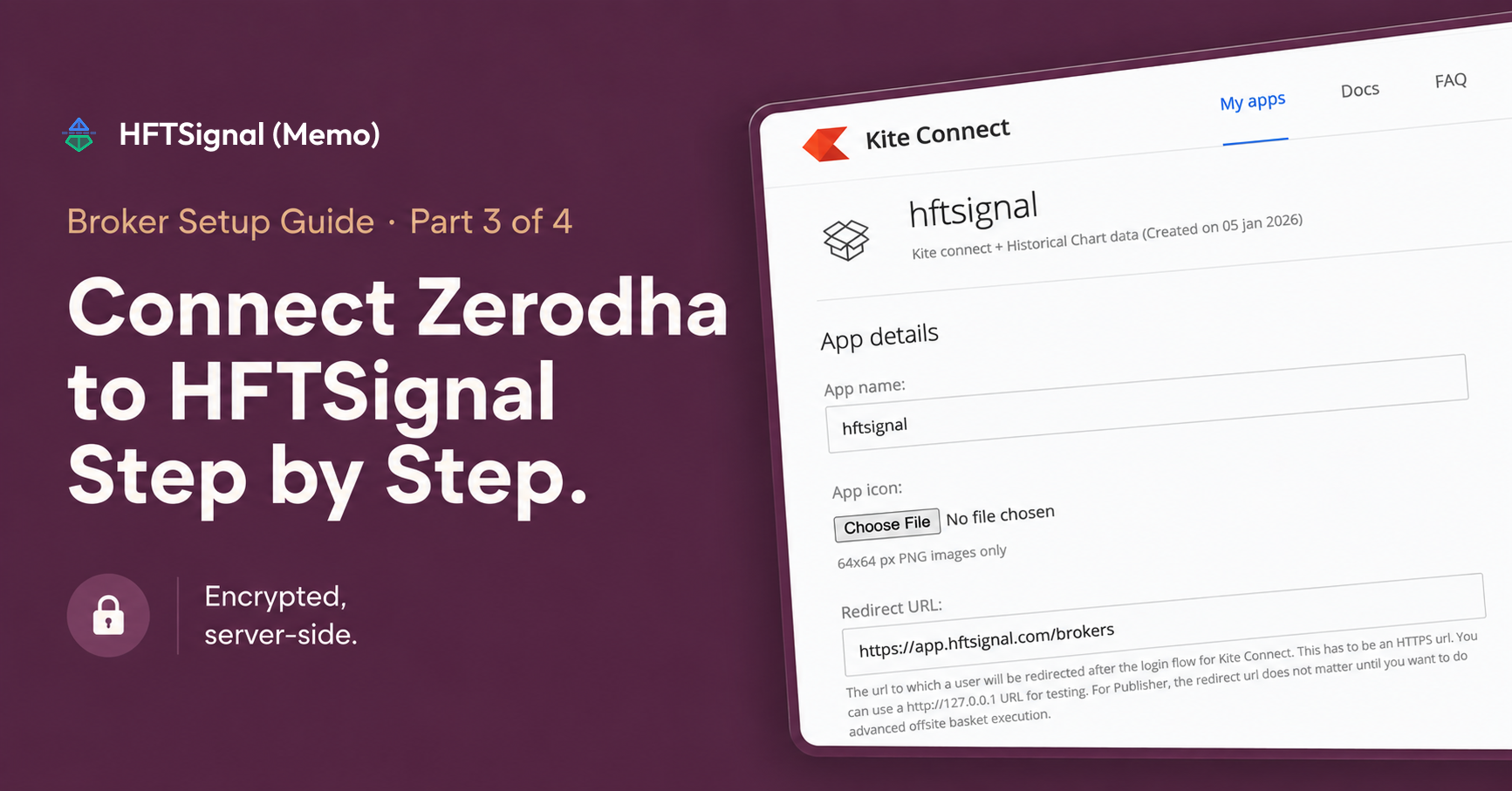
This is Part 3 of a 4-part series on HFTSignal. Part 2 used a connected broker account only as a data source, to download historical prices for a backtest. Paper trading and live trading, covered in Part 4, place orders through that same account, which is why it needs to be fully connected — not just added — before you get there. This post covers exactly that: taking a Zerodha account from unconnected to fully linked.
What Do I Need Before Connecting Zerodha to HFTSignal?
Connecting Zerodha to HFTSignal requires two things: a Zerodha trading account, and a Kite Connect app created on Zerodha’s own developer console. The Kite Connect app is what generates the API key and API secret that HFTSignal uses to talk to your account. Without it, HFTSignal has nothing to authenticate with, so this step happens on Zerodha’s site, separate from HFTSignal, before the connection can be completed.
Kite Connect itself is a paid API subscription, billed by Zerodha and separate from any HFTSignal cost. The plan used for this guide is Zerodha’s Connect plan:
| Kite Connect — Connect plan | Details |
|---|---|
| Cost | 500 credits for 30 days |
| Investing, trading, and reports APIs | Included |
| Historical chart data APIs | Included |
| Live market quotes and ticks via API and WebSockets | Included |
This subscription is purchased directly on Zerodha’s developer console when you create your Kite Connect app — it’s a prerequisite for the API key and secret, not something HFTSignal bills or manages.
How Do I Add a Zerodha Broker Account on HFTSignal?
Adding a Zerodha broker account starts from the Brokers page, under “Connect a Broker,” where Zerodha is marked Available and Groww, Dhan, and Angel One are marked Coming Soon.
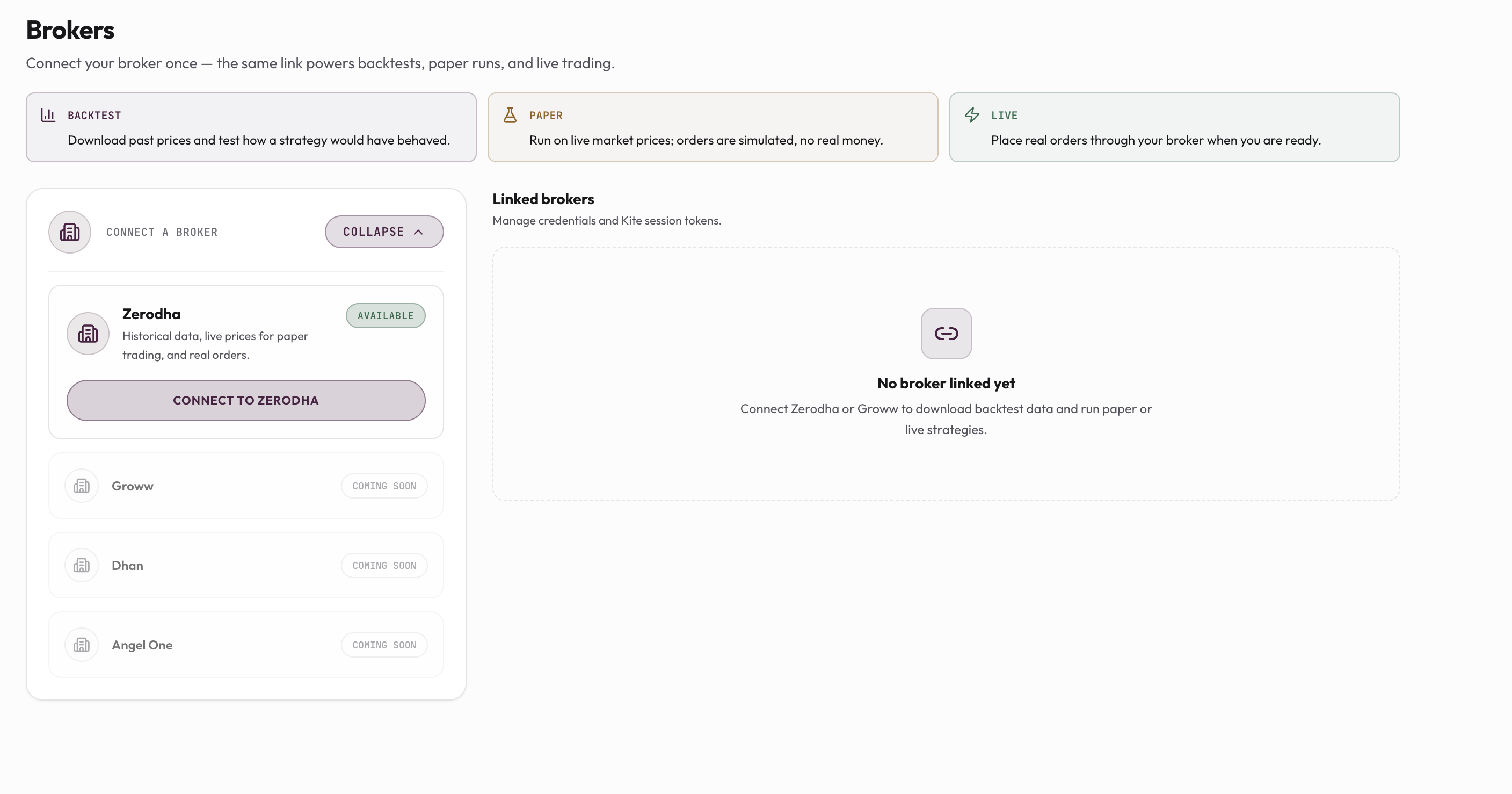
Clicking “Connect to Zerodha” opens a form asking for two fields.
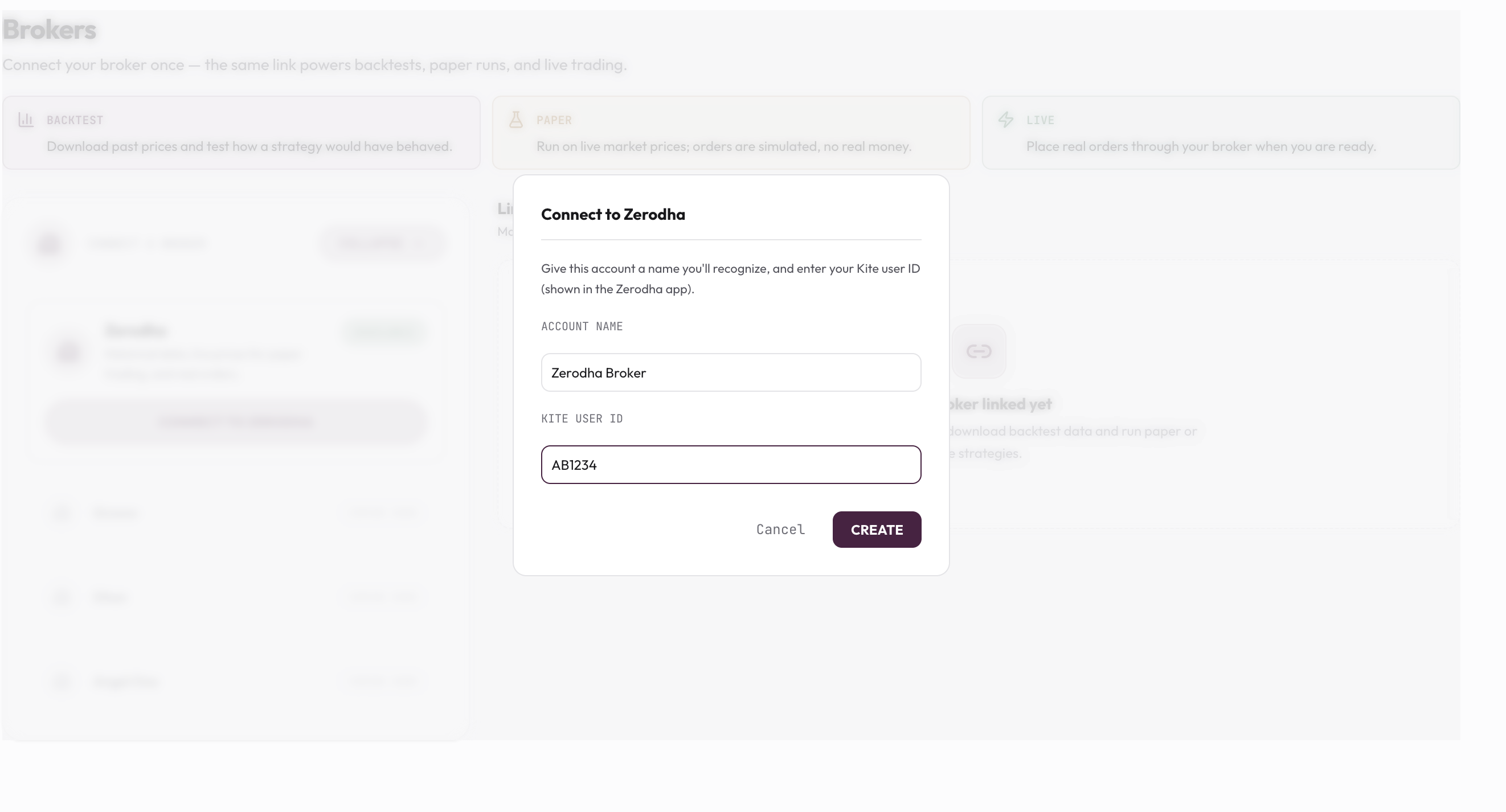
| Field | What it’s for |
|---|---|
| Account Name | A nickname you’ll recognize later in your Linked Brokers list, such as “Zerodha Broker” |
| Kite User ID | The user ID shown in your Zerodha or Kite app, used to identify which account this connection maps to |
Clicking Create adds the account to Linked Brokers immediately — but adding it is not the same as connecting it.
Why Does My Broker Show “Not Connected” Right After I Add It?
A newly added broker account shows a “Not Connected” status because creating the entry only registers the account; it does not yet authenticate with Zerodha.
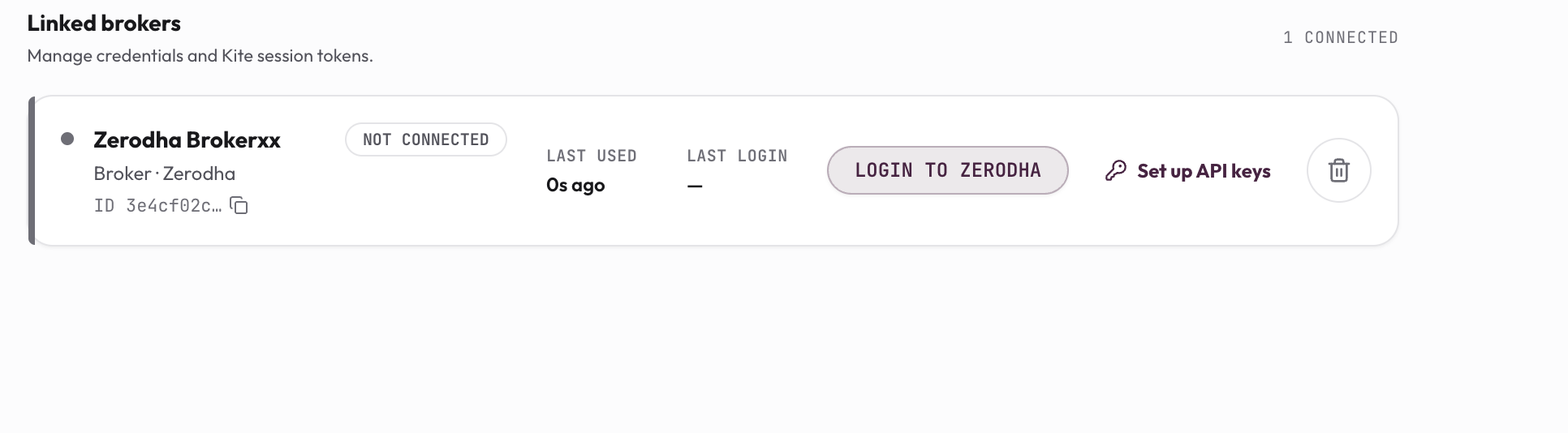
Two actions remain before this account can be used: “Set up API keys” and “Login to Zerodha.” Both are required — the API key and secret let HFTSignal authenticate as your Kite Connect app, and the login step establishes the actual Kite session used to fetch data or place orders.
How Do I Set Up My Kite Connect API Key and Secret?
Clicking “Set up API keys” opens a screen that states plainly how your credentials are handled: sent in the request body and stored encrypted server-side.
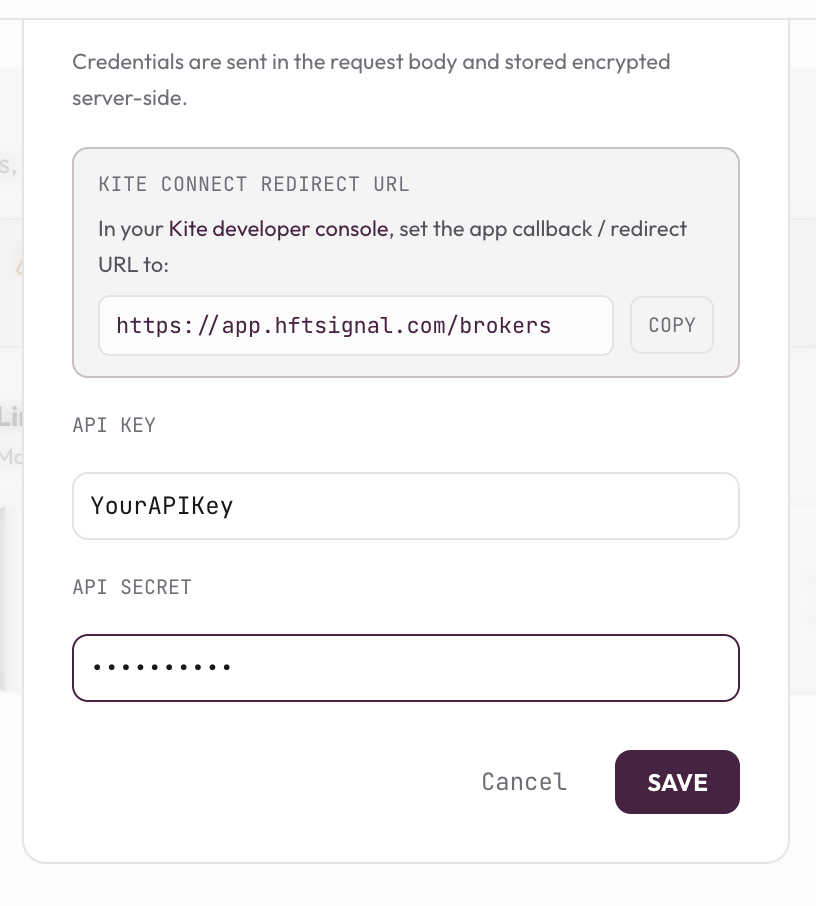
This screen also shows the exact Kite Connect Redirect URL — https://app.hftsignal.com/brokers — that must be pasted into your Kite Connect app’s settings on Zerodha’s developer console, along with a Copy button for it. Below that are two fields to fill in from that same Kite Connect app: API Key and API Secret (masked as you type). Both come from the app you create in the next step, not from HFTSignal.
How Do I Create a Kite Connect App on Zerodha to Get an API Key?
A Kite Connect app is created on Zerodha’s own developer console, separate from HFTSignal, and it’s what generates the API key and secret from the previous step.
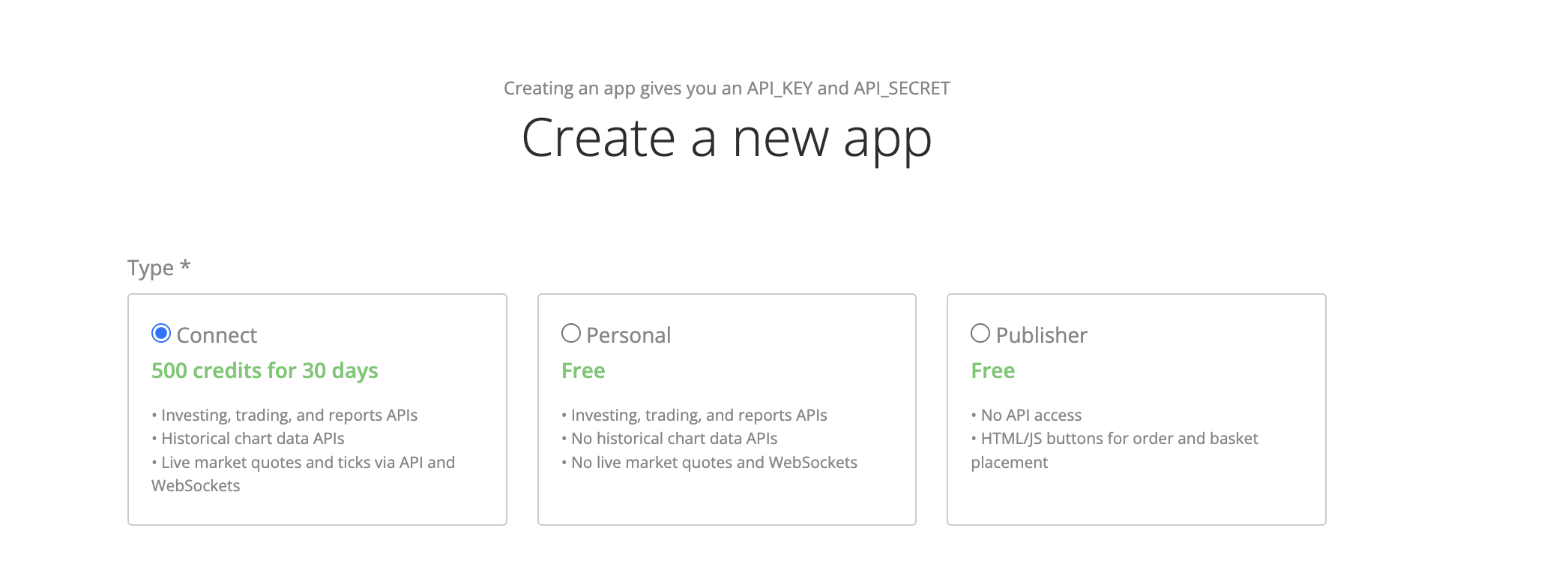
On that console, click “Create new app” and fill in a name (such as “hftsignal”), an optional 64×64px icon, and — critically — a Redirect URL set to exactly the same address shown on HFTSignal’s Set Up API Keys screen: https://app.hftsignal.com/brokers.
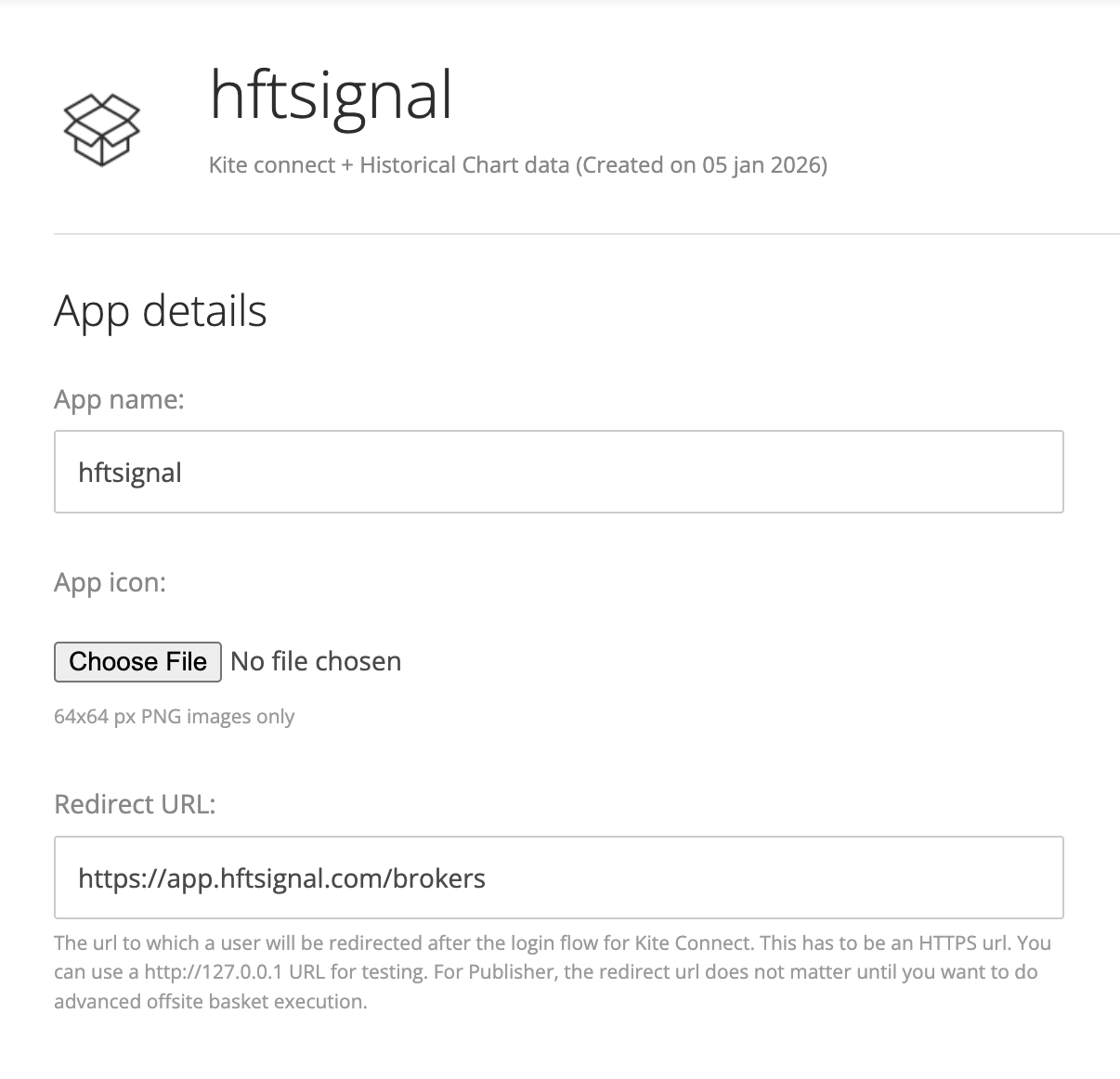
Zerodha requires this URL to be HTTPS, and a mismatch between the two redirect URLs is the most common reason a Kite login fails after everything else is filled in correctly. Once the app is created, Zerodha issues the API key and secret to paste back into HFTSignal.
What Happens After I Save My API Key and Secret?
Saving the API key and secret does not finish the connection by itself — the remaining “Login to Zerodha” button on the Linked Brokers row completes the actual Kite session. That login is what moves the account from Not Connected to an active, usable state, and it’s the same Kite session token that Part 2 referenced when it described the Data Broker Account used to fetch historical prices. Kite sessions expire periodically, which is why the Linked Brokers panel tracks Last Login as well as Last Used — a broker that was connected weeks ago may need a fresh login before it can be used again.
What’s Next After Connecting Your Broker?
Connecting a broker is Part 3 of a four-part series. One part remains.
| Part | Covers |
|---|---|
| Part 1 | Build Strategy — building and saving a strategy definition |
| Part 2 | Build Trading Setup and Run Backtest — bundling a strategy with a broker account and date range, then reading the results |
| Part 3 (this post) | Setting up Broker — connecting your broker account, starting with Zerodha Kite |
| Part 4 | Paper Trade and Live Trade — running a Trading Setup on live prices with simulated orders, then going live |
FAQs
What do I need from Zerodha before connecting it to HFTSignal?
A Zerodha trading account and a Kite Connect developer app on Zerodha’s own developer console. The Kite Connect app is what provides the API key and API secret HFTSignal uses to fetch data and place orders on your behalf.
What is the Kite Connect Redirect URL, and why do I need to set it?
It’s the callback URL Zerodha sends you back to after login. It must be set inside your Kite Connect developer app to https://app.hftsignal.com/brokers, exactly as shown on HFTSignal’s Set Up API Keys screen, or the login step will fail.
Are my Zerodha API key and secret stored safely?
HFTSignal states that credentials are sent in the request body and stored encrypted server-side. They’re entered once on the Set Up API Keys screen and are not shown back in plain text afterward.
Why does my broker show “Not Connected” right after I add it?
Adding a broker with an Account Name and Kite User ID only creates the account entry. It stays Not Connected until you also set up the API key and secret and complete the Zerodha login step.
Can I connect more than one Zerodha account?
Yes. Each account is added separately with its own Account Name and Kite User ID, so multiple broker accounts can appear side by side in Linked Brokers.
Is connecting my broker to HFTSignal safe?
Connecting a broker to HFTSignal does not, by itself, place any order. The API key, secret, and Kite session created during setup are only usable once a Trading Setup is actually launched in Paper or Live mode, and even then Paper mode simulates every order rather than sending it to your broker. Credentials are sent in the request body and stored encrypted server-side, and the API secret is never shown back in plain text after it’s saved.
Shubham Agrawal
HFTSignal researches strategy templates and builds the execution infrastructure Indian retail traders tune and deploy on their own broker.
Related Posts
Try HFTSignal
We research the strategy templates. You tune the parameters. Deploy on your own broker — no code required.
Start for free →