This is Part 4, the final part, of a 4-part series on HFTSignal. Part 3 got a broker fully connected. This post covers what that connection was for: launching a Trading Setup in Paper mode to test it on live prices with no money at risk, then, after an approval step and a static IP requirement, launching it in Live mode.
What Is the Difference Between Paper Trading and Live Trading on HFTSignal?
Paper and Live are the two run modes that actually use live market prices, as opposed to Backtest’s historical data covered in Part 2.
| Mode | Data | Orders | Balance used | Real money at risk |
|---|---|---|---|---|
| Paper | Live market prices | Simulated | A virtual balance per venue (₹10,00,000 in the example below) | No |
| Live | Live market prices | Real, placed through the connected broker | The broker account’s actual balance | Yes |
Both modes run the same Trading Setup unchanged — only the order handling and the money behind it differ.
How Do I Launch a Trading Setup in Paper Mode?
Launching a Trading Setup starts from Execution Runs, where a “Launch Setup” button opens a dialog to pick which setup to run and confirm its mode.
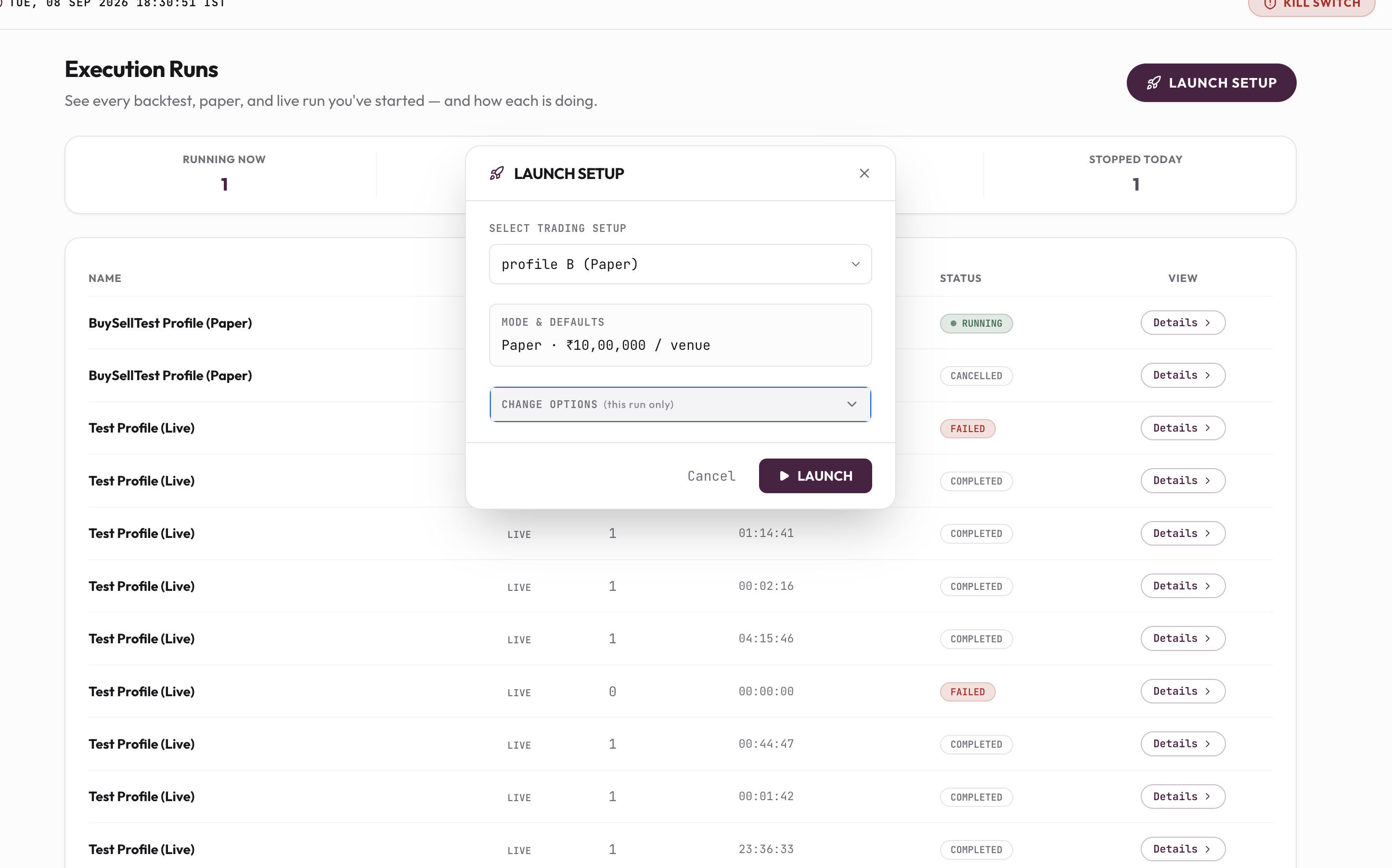
The dialog shows the setup’s existing Mode & Defaults — Paper, with a ₹10,00,000-per-venue virtual balance in this example — and a “Change Options (this run only)” control for adjusting settings for a single launch without editing the saved Trading Setup. Clicking Launch starts the run immediately in Paper mode; no broker confirmation or approval is required, since no real order will be placed.
Why Does Live Mode Need Approval Before I Can Launch It?
Live mode requires a manual approval step from HFTSignal before it can be launched at all, separate from whether a broker is connected.
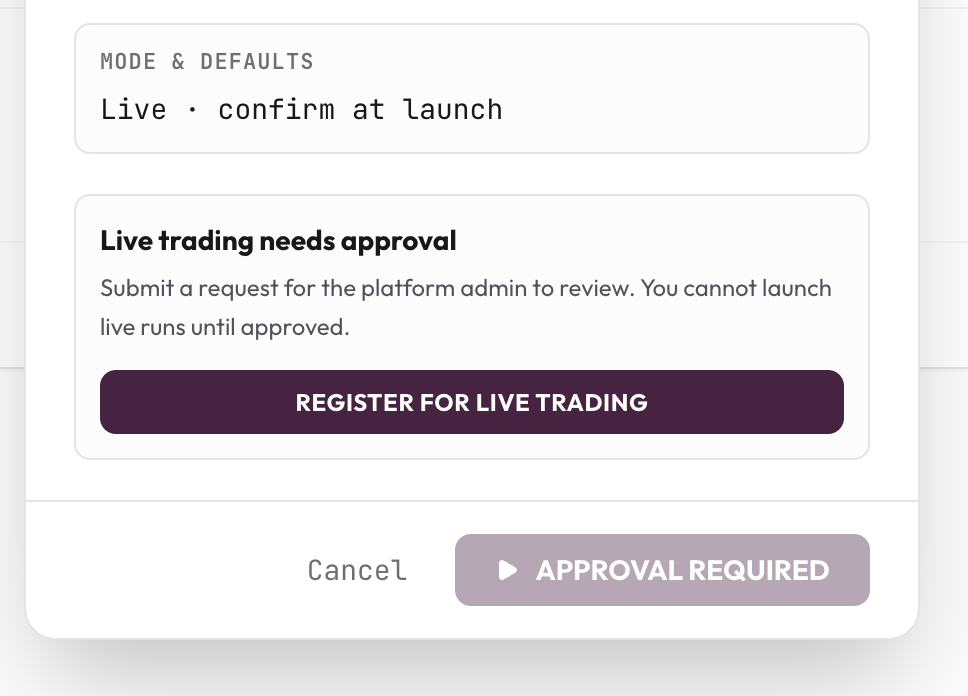
Selecting Live mode on an account that hasn’t been approved shows “Live trading needs approval” instead of a launch confirmation, with a “Register for Live Trading” button to submit the request. The Launch button itself stays disabled, labeled “Approval Required,” until HFTSignal’s team reviews and approves the request — a connected broker from Part 3 is necessary but not sufficient to go live. Live mode places real orders with real capital once launched; paper and backtest results do not guarantee live outcomes.
What Do I Need to Do With My Static IP Before Live Orders Will Work?
Once a live trading request is approved, HFTSignal assigns the account a static Order Egress IP that every live order is sent from.
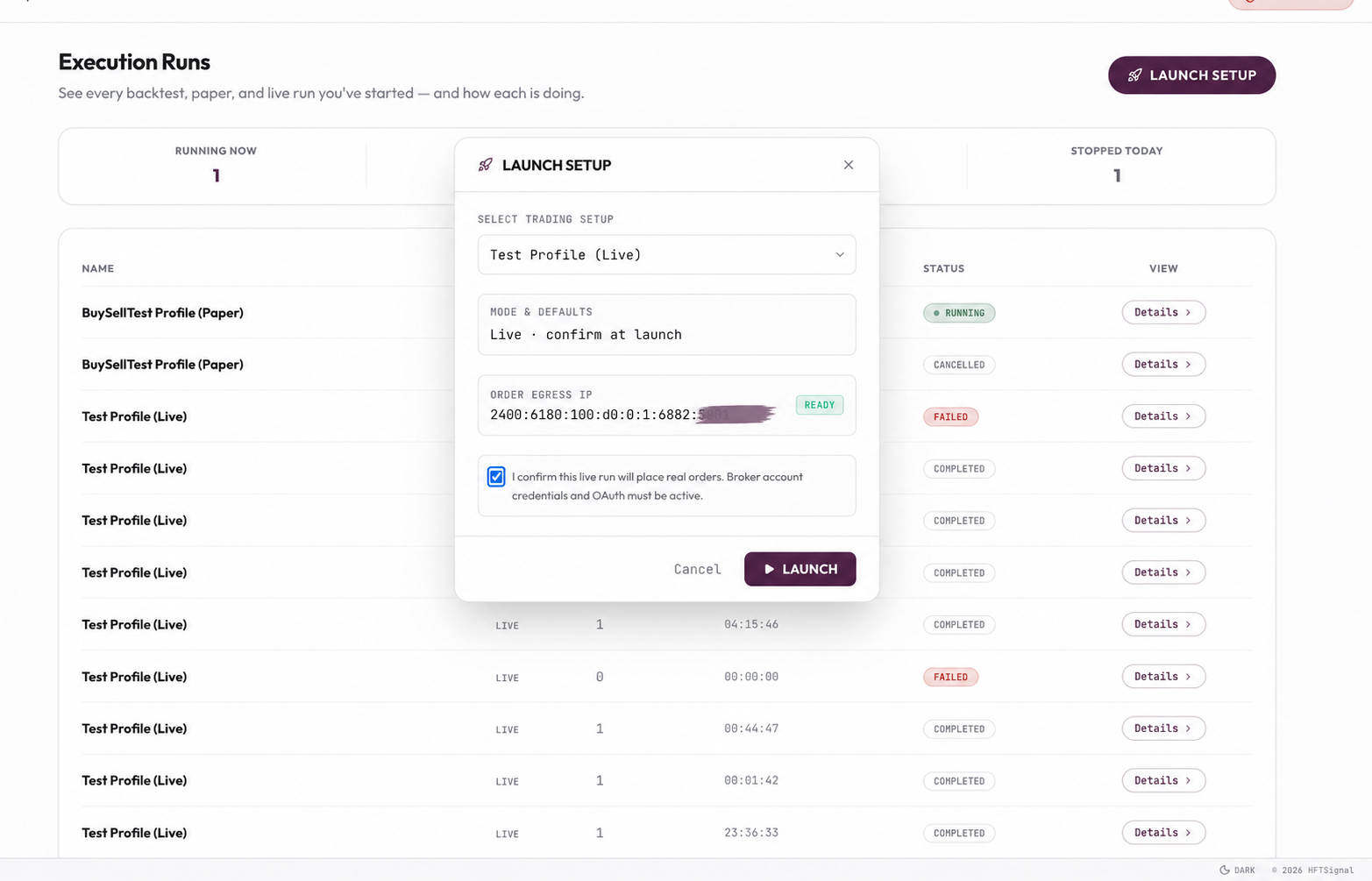
That same IP also appears on the Brokers page as the Live Order IP, with a Copy button.
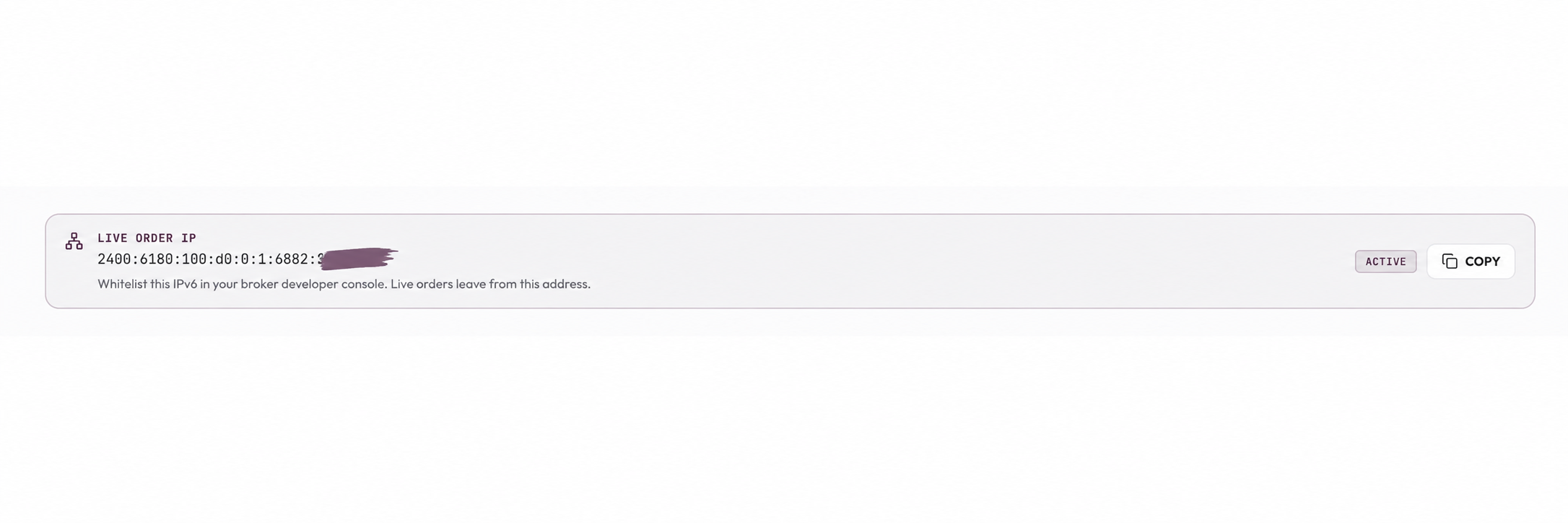
This IP must be copied and added — whitelisted — inside the broker’s own developer console, the same Kite Connect app configured in Part 3. This step is not optional: until the IP is whitelisted there, the broker rejects every live order API call outright, even when the Trading Setup, the API key and secret, and the Kite login are all otherwise correct. The rejection happens on the broker’s side, not HFTSignal’s, which is why it can be confusing to diagnose if this step is missed. The Launch dialog also requires checking “I confirm this live run will place real orders. Broker account credentials and OAuth must be active” before the Launch button becomes clickable in Live mode.
How Do I Read the Results of a Paper or Live Run?
Every run, whether Paper or Live, is found from the Dashboard’s Recent Runs widget or the Runs section, listed with its mode and current status.
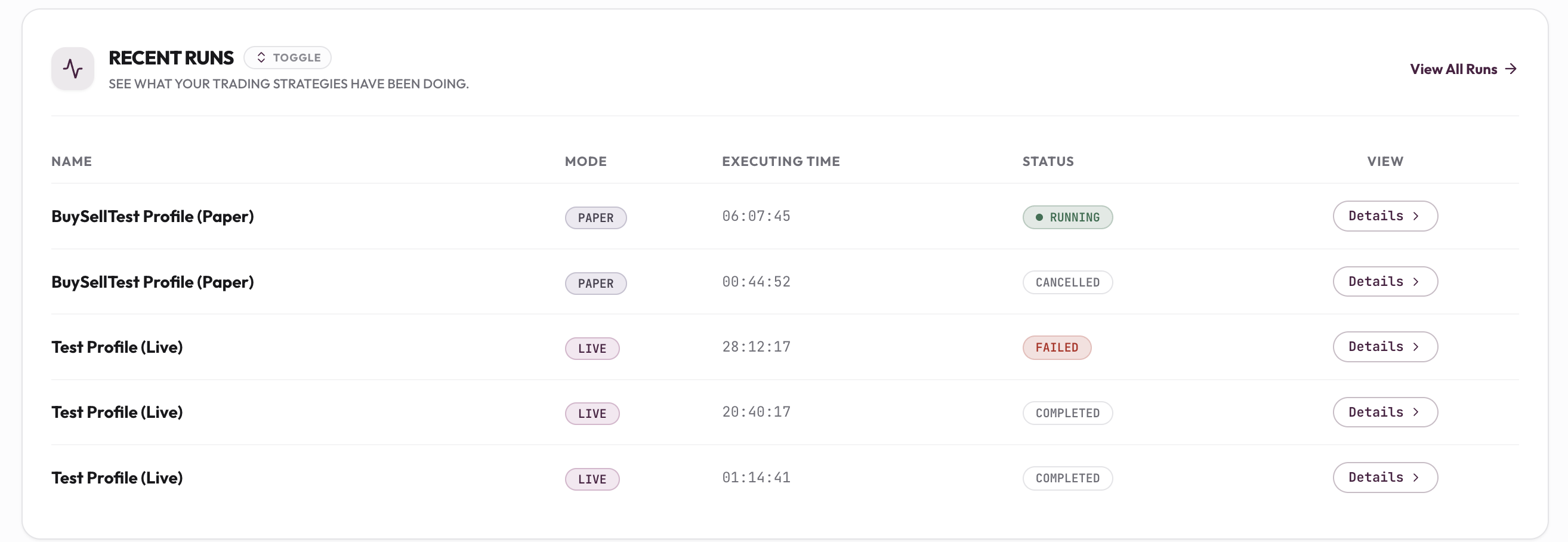
Opening a run’s Details shows an Overview tab with account and performance status. Here’s what that looks like for a Paper run:
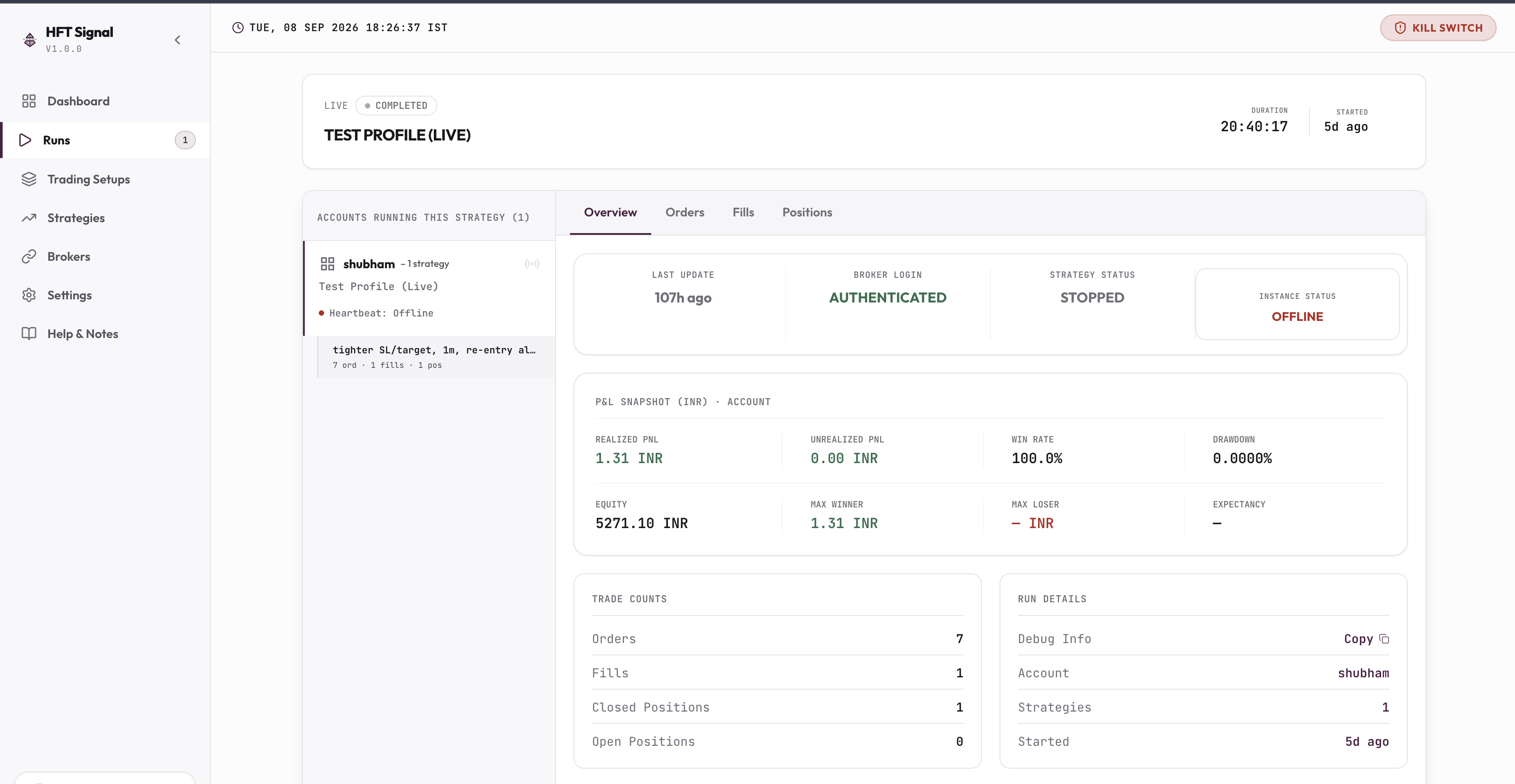
And for a Live run:
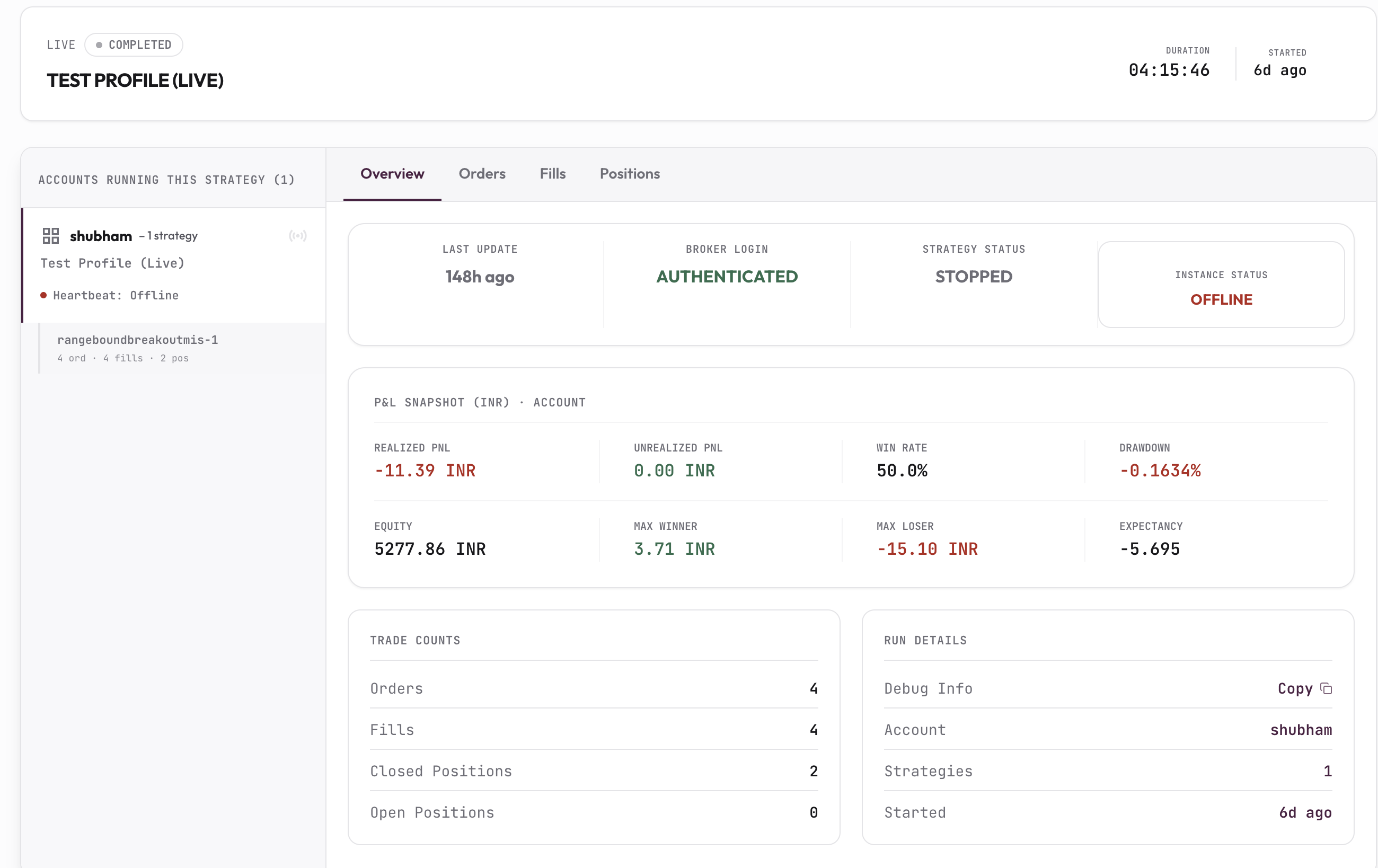
Both share the same layout — only the Mode badge and whether real capital is behind the numbers differ.
| Field | What it means |
|---|---|
| Broker Login | Whether the connected broker’s session is currently authenticated |
| Strategy Status | Whether the strategy logic is currently running or stopped |
| Instance Status | Whether the run’s process is online or offline |
| Realized PNL / Unrealized PNL | Profit or loss already locked in versus profit or loss on open positions |
| Win Rate / Drawdown | Share of trades that closed profitably, and the largest peak-to-trough decline |
| Equity | Current account value including realized P&L |
| Max Winner / Max Loser / Expectancy | The single best and worst trade, and the average expected profit or loss per trade |
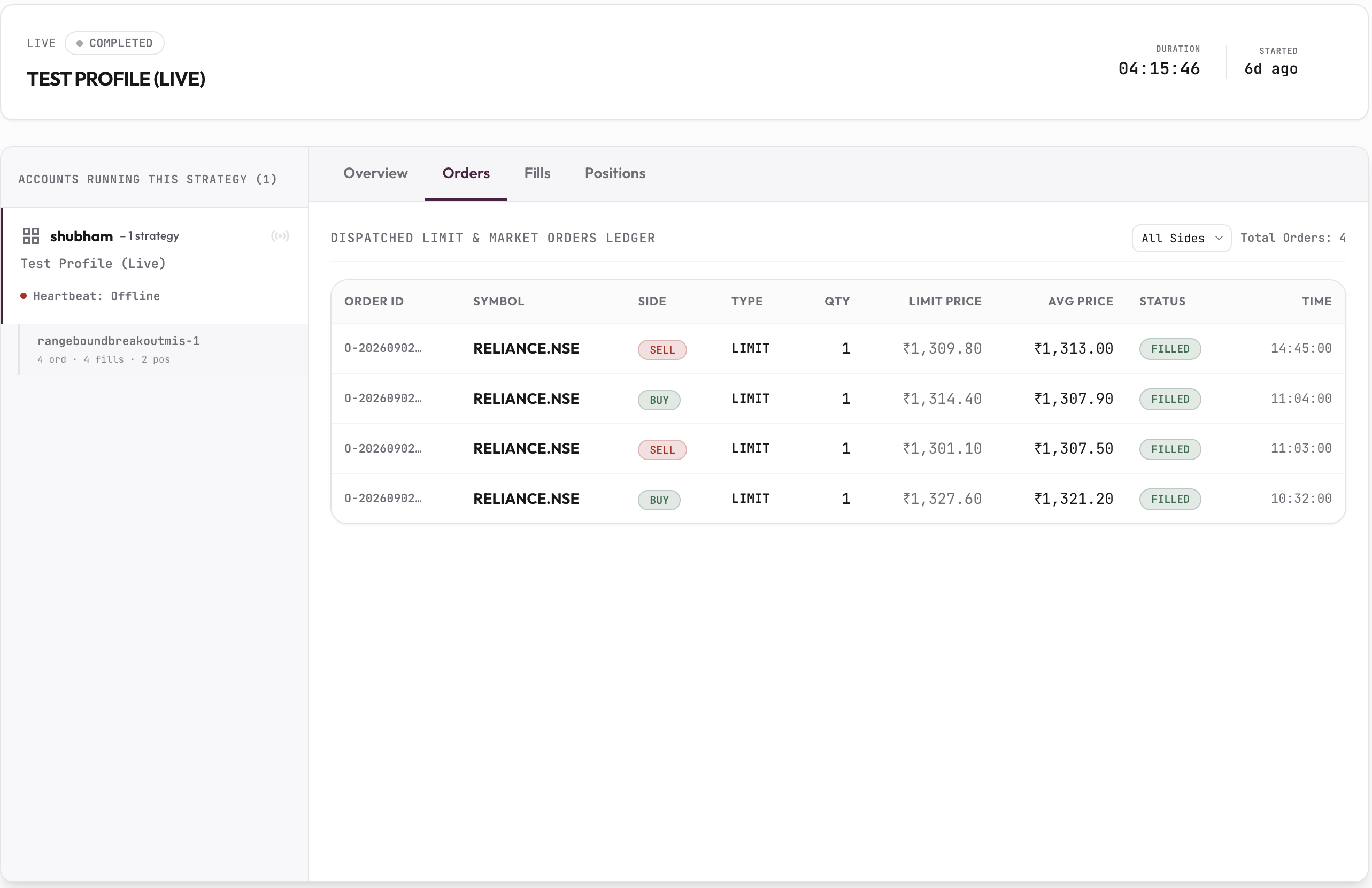
Three more tabs break the same run down further. Orders lists every dispatched order with its side, type, quantity, price, and status.
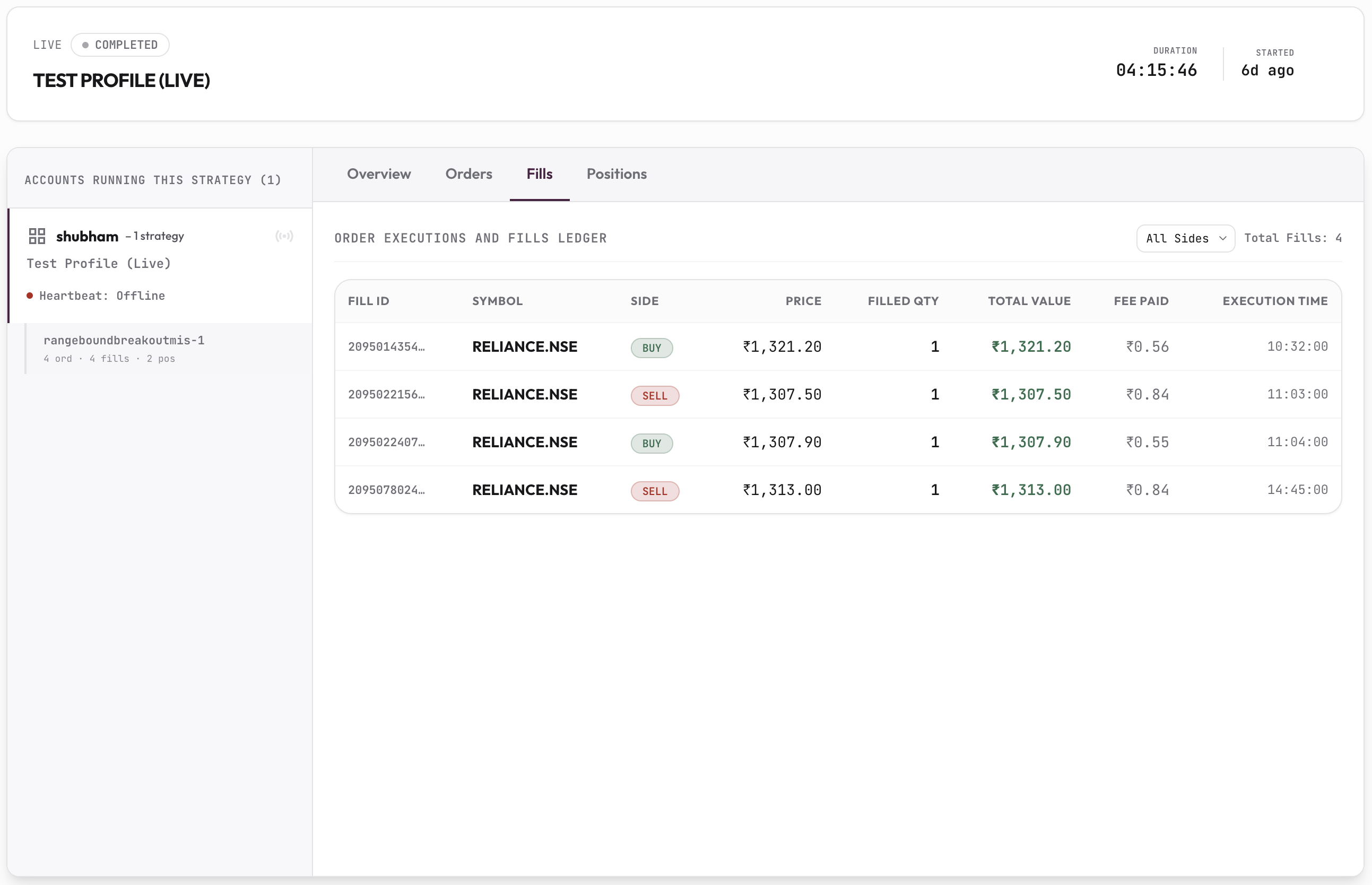
Fills lists each individual execution with price, filled quantity, and fees paid.
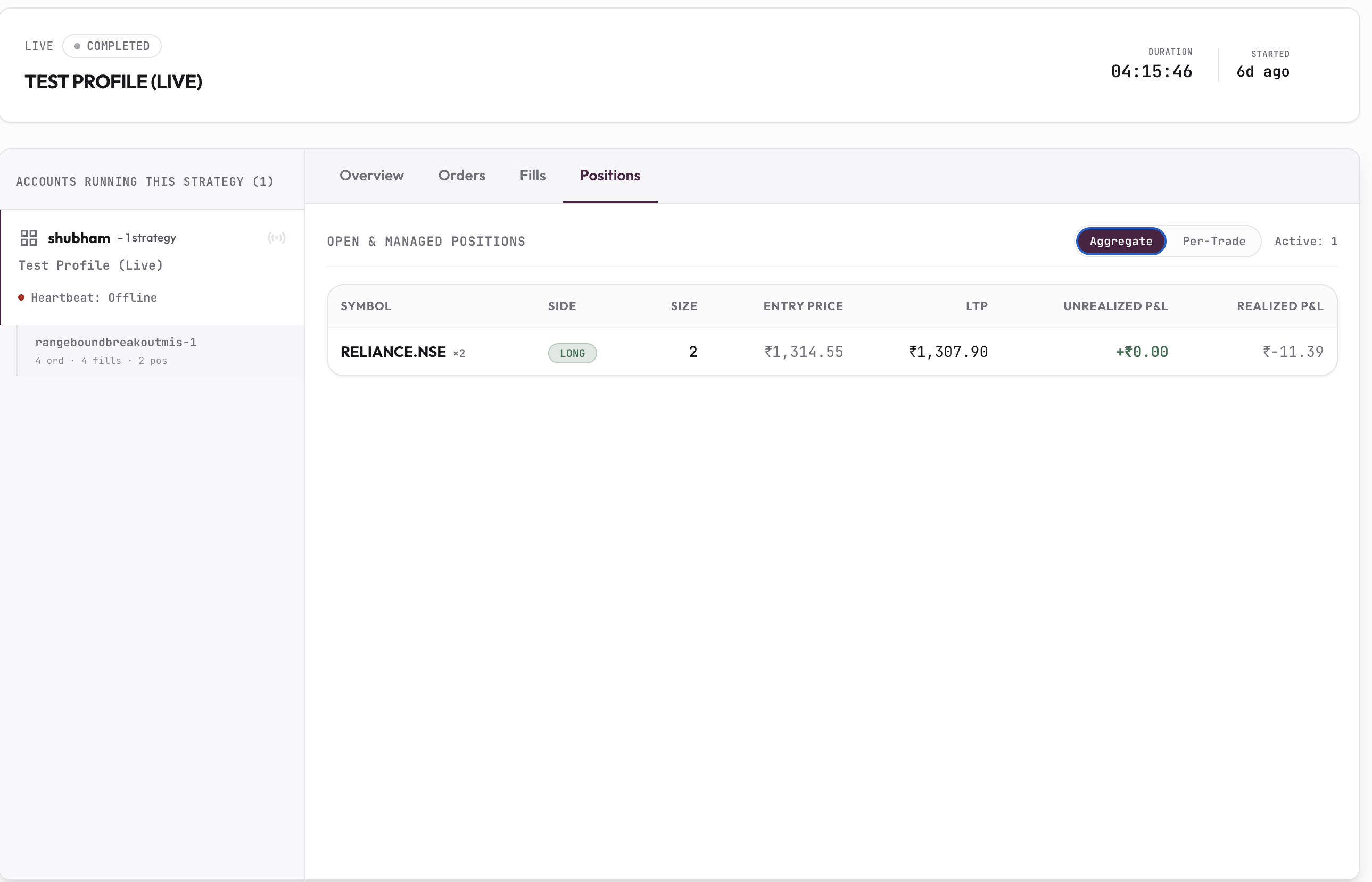
Positions shows the resulting open or closed position built from those fills.
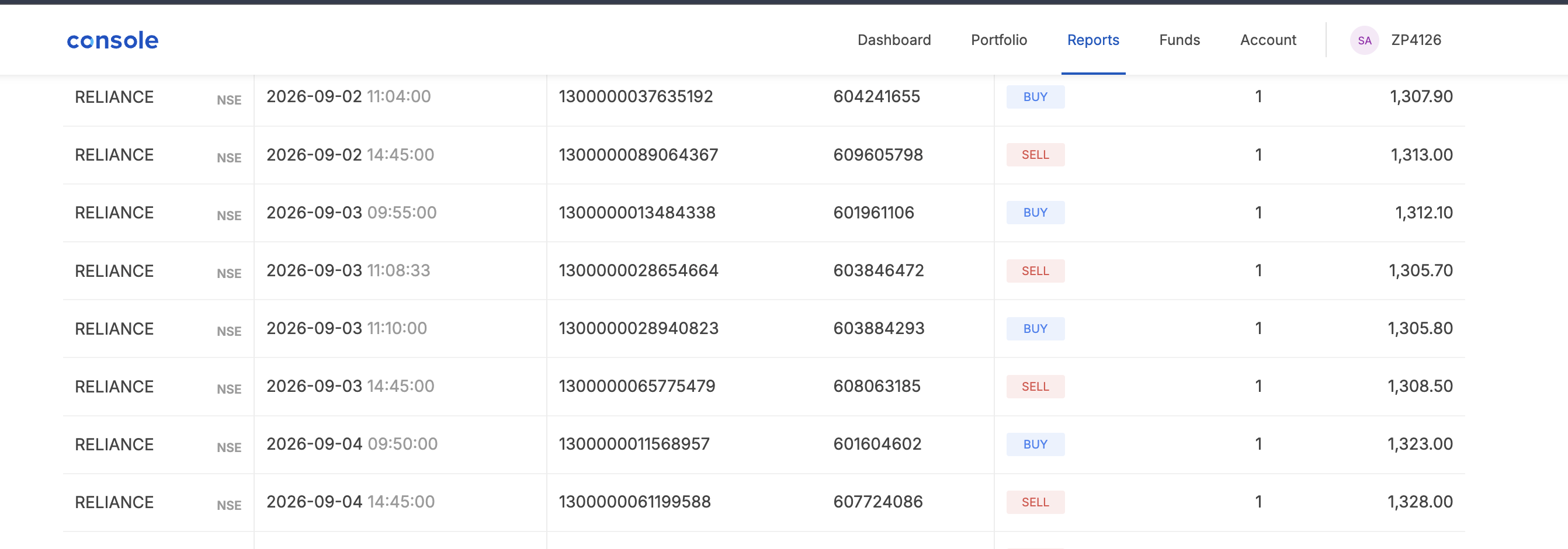
For a live run, these numbers can be cross-checked independently against the broker’s own records — the same fills shown in HFTSignal’s Fills tab also appear in the broker’s own trade history, such as Kite’s Tradebook.
This Was the Last Part of the Series
All four parts of this series are now covered.
| Part | Covers |
|---|---|
| Part 1 | Build Strategy — building and saving a strategy definition |
| Part 2 | Build Trading Setup and Run Backtest — bundling a strategy with a broker account and date range, then reading the results |
| Part 3 | Setting up Broker — connecting your broker account, starting with Zerodha Kite |
| Part 4 (this post) | Paper Trade and Live Trade — running a Trading Setup on live prices with simulated orders, then going live |
From here, the Dashboard’s Recent Runs widget and the Runs section are where every future backtest, paper, and live run gets monitored, and the Kill Switch stays available on every screen to stop everything immediately if needed.
FAQs
What is the difference between Paper mode and Live mode when launching a Trading Setup?
Paper mode runs a Trading Setup on live market prices but simulates every order against a virtual balance per venue, so no order reaches your broker. Live mode places real orders through your connected broker account using real capital.
Do I need approval before I can launch a Trading Setup in Live mode?
Yes. The Launch Setup dialog blocks Live mode behind a “Live trading needs approval” step. You submit a request via Register for Live Trading, and the Launch button stays disabled until HFTSignal’s team reviews and approves it.
What happens after my live trading request is approved?
HFTSignal issues a static Order Egress IP tied to your account. You must then add that exact IP address to your broker’s own developer console. Live orders will be rejected by the broker until this is done, even if everything else is configured correctly.
Why would a live order get rejected even after approval?
The most common cause is the static Order Egress IP not being whitelisted in the broker’s developer console. Every live order is sent from that specific IP, and a broker that doesn’t recognize it will reject the API call.
How do I check whether a run actually placed real trades?
Open the run’s Orders, Fills, and Positions tabs. Orders lists every dispatched order with its status, Fills lists each executed trade with price and fees, and Positions shows the resulting position. These can be cross-checked against your broker’s own order history.
Shubham Agrawal
HFTSignal researches strategy templates and builds the execution infrastructure Indian retail traders tune and deploy on their own broker.
Related Posts
Try HFTSignal
We research the strategy templates. You tune the parameters. Deploy on your own broker — no code required.
Start for free →